
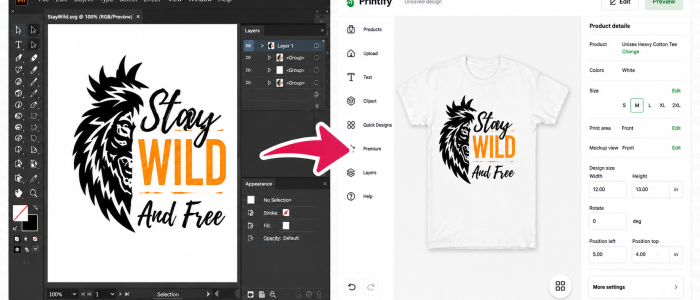
Using SVG files on Printify gives you infinite scalability with zero quality loss — here's exactly how to do it.
If you've ever bought an SVG t-shirt design file and wondered exactly how to get it onto Printify and into your store — this guide is for you. SVG files are the gold standard for print-on-demand because they scale infinitely without pixelation, keeping your prints razor-sharp at any size.
For print-on-demand t-shirts, this matters enormously. A low-resolution PNG might look fine on screen but print blurry or pixelated on fabric. An SVG at any size will always print crisp, clean, and professional.
Quick answer: Printify accepts SVG files natively. Upload directly through the Product Creator. Max file size is 20MB. Text layers must be converted to paths first. PNG is also accepted and often easier for beginners.
What is an SVG file — and why does it matter for t-shirt printing?
SVG stands for Scalable Vector Graphics. Unlike PNG or JPEG files — which are made of fixed pixels — SVG files are made of mathematical paths and shapes. This means an SVG can be scaled to any size, from a small phone case to a giant banner, with absolutely no loss in quality.
For print-on-demand t-shirts, this matters enormously. A low-resolution PNG might look fine on screen but print blurry or pixelated on fabric. An SVG at any size will always print crisp, clean, and professional.
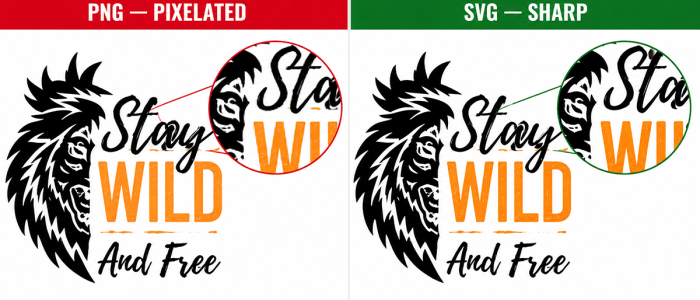
SVG files stay perfectly sharp at any size. PNG files can become pixelated when scaled up.
SVG vs PNG — which should you use on Printify?
| Feature | SVG | PNG |
|---|---|---|
| Scalability | Infinite — no quality loss | Fixed resolution — can pixelate |
| Transparency | Yes, native | Yes, native |
| File size | Usually smaller | Can be large at high DPI |
| Text in design | Must convert to paths first | No conversion needed |
| Photos/gradients | Not ideal | Best choice |
| Best for | Logos, illustrations, vectors | Photos, complex gradients |
| Printify support | Yes — max 20MB | Yes — max 100MB |
💡 TeePlace tip: All designs from TeePlace include both SVG AND PNG in every download — so you always have the right format for every platform and use case.
Printify SVG file requirements — before you upload
Before uploading any SVG to Printify, check these requirements. Skipping this step is the #1 reason designs print incorrectly or get rejected.
- Maximum SVG file size: 20MB
- Text layers: Must be converted to paths/outlines — Printify cannot render SVG text fonts
- Maximum path elements: 20,000 individual paths
- Embedded raster images in SVG: Allowed, but count toward the 20MB limit
- EPS and AI files: Must be converted to SVG first using Illustrator, Affinity Designer, or Inkscape
- Recommended DPI equivalent: Design your SVG at 300 DPI logic — even though SVG is vector, the printable area dimensions matter
⚠️ Most common mistake: Uploading an SVG with live text (editable text layers). Printify will either drop the text or render it incorrectly. Always convert all text to outlines/paths before uploading.
How to convert text to paths — step by step
Select All (Ctrl+A) → Type menu → Create Outlines. Then save as SVG. All text becomes vector paths.
Select All (Ctrl+A) → Path menu → Object to Path. Then File → Save As SVG.
Select all text → Layer menu → Convert to Curves. Export as SVG.
Open the saved SVG in a browser (Chrome/Firefox). If text displays correctly without having the font installed, conversion worked.
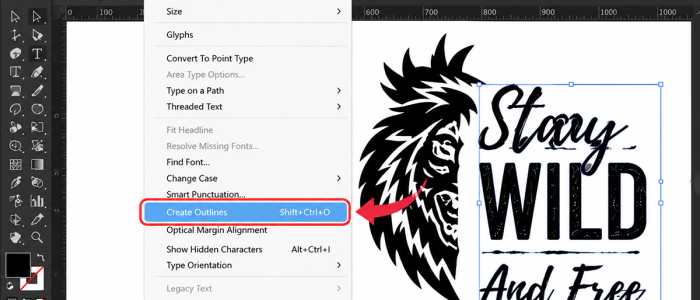
Converting text to paths/outlines in Illustrator before uploading to Printify.
Step-by-step: uploading SVG designs to Printify
From your dashboard, click "Create new product" or select an existing product to edit.
Search the catalog for your preferred t-shirt style. Click "Start designing" to open the Product Creator.
In the Product Creator, click the image upload area. Select your SVG file from your computer. Max size 20MB.
Use the drag handles to resize and position within the print area. Keep important elements inside the safe zone (solid white border).
Check the mockup on each size — what looks balanced on a Medium may look too small on an XXL. Adjust if needed.
Add a keyword-rich product title and description. Set your price (Printify base cost + your margin). Click Publish to your store.
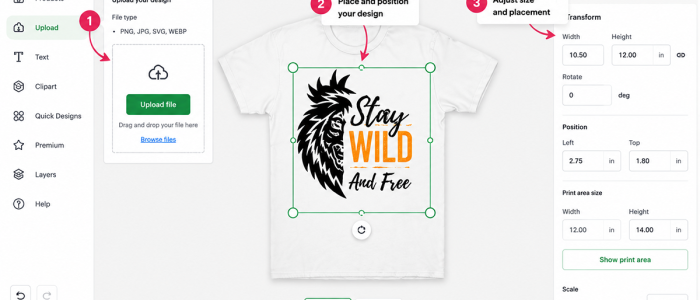
The Printify Product Creator showing an SVG design uploaded and positioned on a t-shirt.
Design placement guide — where to position your SVG on the shirt
Placement is as important as the design itself. A great design in the wrong position looks amateurish and won't sell. Here are Printify's standard placement guidelines:
- Full front print: Ideal for statement designs and illustrations. Print area approximately 12" × 16" for adults. Keep design 3" below the collar.
- Center chest: Best for logos and simple graphics. Keeps focus tight. Recommended 6–8" wide for adults.
- Left chest (pocket area): Classic placement for small logos and branded designs. Polished and professional.
- Full back print: Bold statement designs, large artwork. Same dimensions as full front.
Important: The same SVG design won't look proportionate on all shirt sizes. An 8" design looks balanced on a Medium but can look small on an XXL. Use Printify's size preview to check every size before publishing.
Where to get high-quality SVG t-shirt designs for Printify
Finding commercial use SVG designs that are print-ready and Printify-compatible is the biggest challenge for most POD sellers. You need designs that are:
- Vector-based (true SVG, not a PNG embedded in an SVG)
- Text already converted to paths
- Under 20MB file size
- Covered by a commercial use license
- High enough resolution for large print areas
Every design in the TeePlace marketplace meets all of these requirements. Our SVG files are created by professional graphic designers, tested for print quality, and come with a full commercial use license — meaning you can use them on Printify, sell the printed products, and keep all the revenue.
Ready-to-use SVG designs for Printify
Browse 500+ commercial use SVG t-shirt designs — all Printify-compatible, instant download, from $5.
Common SVG upload errors on Printify — and how to fix them
Cause: Text layers not converted to paths. Fix: Convert all text to outlines in Illustrator/Inkscape before uploading.
Cause: SVG over 20MB (often contains embedded raster images). Fix: Reduce embedded image quality or switch to PNG for photo-heavy designs.
Cause: SVG contains low-resolution embedded raster images. Fix: Replace raster elements with vector equivalents, or use a 300 DPI PNG instead.
Cause: SVG exceeds 20,000 path elements. Fix: Simplify paths in Illustrator using Object → Path → Simplify, or split into multiple files.
Summary — SVG on Printify checklist
- ✓ Convert all text to outlines/paths before uploading
- ✓ Keep file size under 20MB
- ✓ Check design stays within the safe zone in Product Creator
- ✓ Preview on every shirt size before publishing
- ✓ Use RGB colour mode for vibrant print colours
- ✓ Ensure you have a commercial use license for every design you sell
- ✓ Order a sample before scaling your store
Start your Printify store today with ready-to-upload designs
All TeePlace designs include SVG + PNG + EPS + AI formats — commercial license included — from just $5.
Browse Trending Designs Get Bundle Deals